Home ›Blog›How to›How to Edit Videos on Instagram Even If You’re a Beginner
How to Edit Videos on Instagram Even If You’re a Beginner
Posted on 17th Nov, 2025.
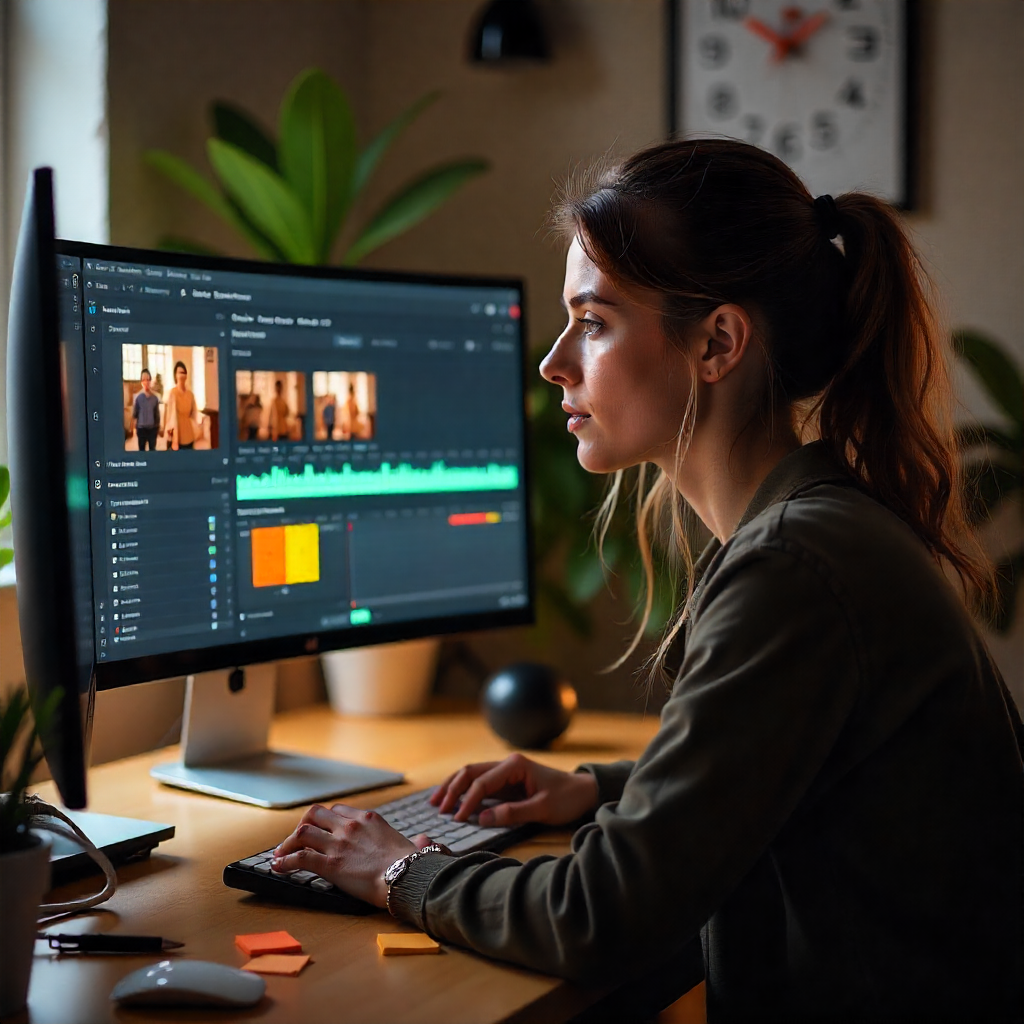
TL;DR (The Short Version)
- Most Reels need some form of editing to be Insta-ready.
- Even beginners can use Instagram Reels' in-app editing to perfect video content.
- The better your video is to start with, the less you'll have to edit, so film in good lighting.
- Use trending sounds, catchy hooks, and aesthetic effects to improve your Reel before it goes live.
Reels are inescapable on Instagram, and in order to make it big on the social media giant, participating is almost non-negotiable. But if you've never made or edited a video before, doing so for Reels can be daunting. The good news? We're here to help.
Let's get into our step-by-step process to edit better on Instagram.

Supercharge Your Instagram Likes
Get real Instagram likes and boost your post engagement instantly.
50 likes at $ 1.34
Why Edit Your Videos at All?
We get it, we get it - editing feels long-winded, or even unnecessary. But editing helps you keep your viewer’s attention. People scroll quickly, and you often have only a second or two to convince them to stay. A bit of trimming, adding text, choosing music, or speeding up certain moments can turn a simple clip into something far more engaging. While your content certainly doesn't have to be perfect, it's shouldn't be dull or aesthetically poor, or your audience will immediately scroll away.
1. Start With a Clear Idea
Before you start editing, know what message you want to share. Even a short Reel works better when you have a simple plan. Think about the takeaway you want the viewer to have and the tone you want to create. You don’t need a script, but a general direction helps you film more efficiently and makes your editing process much smoother.
If you're new to video content, scrolling Instagram Reels or even TikTok for a few hours can give you an insight into how other creators edit and provide inspo for your post(s). Stick to scrolling in your desired niche for the most realistic inspiration.
2. Film in Good Lighting
Lighting makes a huge difference. Natural light is usually the best, so film near a window or outside when possible. If you're indoors, make sure the light is facing you rather than behind you. Clear, bright footage instantly looks more professional and makes editing easier because you don’t have to fix dark or grainy clips. The better the raw footage, the less time you'll have to spend improving it.
3. Import Your Clips to Instagram
Open Instagram and choose whether you're making a Reel, Story, or in-feed video. Reels offer the most editing features, which makes them ideal for beginners. You can upload clips from your camera roll or film directly in the app. Uploading is helpful if you’ve recorded several clips and want more control during editing.
4. Trim and Arrange Your Clips
Start by trimming each clip to remove awkward starts, pauses, or anything unnecessary. Short, sharp clips hold attention better. After trimming, arrange them in the order that makes the most sense for your message. A smooth flow between clips is one of the easiest ways to make your video feel more polished. Any time spent 'ummm'ing or any long pauses should be removed to better capture your audience's attention.
5. Adjust the Video Speed
You can speed up or slow down sections of your video to improve pacing. Speeding up can make a tutorial feel more energetic, while slowing down helps highlight important moments (although this should be used sparingly). Small adjustments are usually enough. They help your video feel more intentional without overwhelming the viewer.
6. Add Music or Sound
Audio shapes how your video feels. Instagram allows you to add trending music, sound effects, or your own original audio. Music can set the tone and make your content feel more dynamic. If you’re speaking in the video, make sure the music volume is low enough that your voice is clear. If you’re relying entirely on music, consider using a trending sound to help increase discoverability.
7. Include Text and Captions
Many people watch videos without sound, so adding text helps deliver your message, and it's more inclusive. This can be captions, short explanations, or key points from your video. Keep text brief, clear, and positioned where it doesn't block your face or important visuals. You can time text so it appears at the exact moment it’s needed, which makes the video feel more engaging and easier to follow.
8. Use Effects Sparingly
Instagram offers filters, AR effects, and transitions that can enhance your video, but too many can distract from your message. Choose simple enhancements that brighten the footage or create a consistent look. Minimal editing often looks more professional than over-the-top effects.
9. Align Your Clips for Smooth Transitions
The Align tool helps you match your position between two clips. This is ideal for outfit changes, creative transitions, or jumps between similar scenes. Smooth transitions make your video feel seamless and visually satisfying, even if you recorded the clips at different times.
10. Add Voiceovers for a Professional Touch
Voiceovers are useful for tutorials, behind-the-scenes content, or storytelling. After arranging your clips, you can record a voiceover directly within Instagram. This allows you to speak clearly and calmly without worrying about background noise while filming, and it also gives your video structure and makes it easier for viewers to follow.
11. Preview and Make Final Adjustments
Before posting, watch your video start to finish. Check whether the pacing feels right, the text is readable, and the music fits the mood. Small tweaks can make a big difference. Don’t hesitate to trim a second here or adjust timing there. The goal is a video that feels smooth and easy to watch - the viewer shouldn't have to work hard.
12. Write a Strong Caption
Even though the focus is the video, a thoughtful caption adds context and encourages engagement. Use it to explain what your video is about, ask a question, or give extra value. A good caption can prompt viewers to comment, save, or share, which improves your video’s overall performance.
Repurposing TikTok Content
If you also use TikTok, you can repurpose these videos by posting them to Reels, meaning you wouldn't have to make any in-app Instagram edits. Just make sure the size and style of the video are right for Instagram before sharing.
Frequently Asked Questions
Which app is best for Instagram video editing?
Several apps stand out, depending on your skill level and the style you want:
- CapCut – The most popular choice for Instagram and TikTok creators. It’s free, easy to use, and packed with templates, transitions, effects, and audio tools.
- InShot – Great for beginners. Simple controls, quick resizing for Instagram formats, and reliable trimming and music options.
- Adobe Premiere Rush – Ideal if you want something more professional but still beginner-friendly. It syncs with Adobe’s ecosystem and offers strong colour and audio controls.
- VN Video Editor – A powerful free option with advanced transitions, multi-layer editing, and no watermark.
Any of these will help you create polished, platform-ready videos, but for most users, CapCut offers the easiest and most versatile experience.
Can I edit my videos on Instagram?
Yes, you can. Instagram includes a built-in editing tool that lets you trim clips, add music, apply filters, adjust lighting, insert text and stickers, and rearrange scenes. While it doesn’t have the same level of depth as professional software, it’s more than enough for polishing short-form videos, Reels, and Stories directly in the app. For beginners, it’s a straightforward way to create clean, engaging content without needing extra tools.
If you're more well-versed in the world of video editing, use an external editing app with better features and upload the end result to Instagram.
An Instagram post published by Megafamous
We provide marketing solutions for all your Instagram needs. Check out our Premium instagram likes , high-quality instagram followers and instant instagram views . Or why not read some more Instagram related stuff on our blog?